
Managing tracking codes on a WordPress site can feel like herding cats. You want data, but you also want speed, and you definitely don’t want duplicate data.
There are legitimate reasons to remove Google Tag Manager (GTM) from just your homepage. Maybe you are running a specific homepage experiment that conflicts with your tags. Maybe you are trying to debug a layout shift (CLS) issue that only happens on the front page. Or, most commonly, you are fixing a “double-firing” issue where the tag is duplicated only on the home screen.
Whatever your reason, simply deleting the GTM plugin isn’t the answer, because you still need tracking on your blog posts, product pages, and checkout flows. You need conditional loading.
Here is how to surgically remove GTM from your homepage without breaking the rest of your site.
- I. Before You Start: The Safety Briefing Google Tag Manager (GTM)
- II. Method 1: The Plugin Approach (Best for Beginners)
- III. Method 2: The "Functions.php" Method (For Intermediates)
- IV. Method 3: Page Builder Settings (Elementor & Divi)
- V. Troubleshooting: Why is Google Tag Manager GTM Still There?
- VI. Verifying Your Work
- VII. A Note on "Internal" Exclusion
I. Before You Start: The Safety Briefing Google Tag Manager (GTM)
I cannot stress this enough: Do not edit your theme files without a safety net.
If you miss a single semicolon in your code, your site can turn into a blank white screen (the “White Screen of Death”). Before you try any method below:
-
Backup Your Site: Use a plugin like UpdraftPlus or your hosting provider’s backup tool to create a fresh restore point.
-
Use a Staging Site: If your host offers a staging environment, test these changes there first.
-
Know Your Restoration Plan: If the site breaks, know how to access your files via FTP/SFTP to undo the changes.
II. Method 1: The Plugin Approach (Best for Beginners)
If looking at code makes you sweat, this is your route. We will use a plugin that allows for “conditional” logic. The best tool for this in 2026 is WPCode (formerly Insert Headers and Footers).
Step 1: Clean House
First, you need to remove GTM from wherever it is currently installed.
-
If it’s in your theme settings (e.g., Divi > Integration), remove it.
-
If it’s in a different GTM plugin, deactivate that plugin.
-
Goal: We want to start with no GTM, and then add it back intelligently.
Step 2: Install WPCode
Install and activate the free WPCode plugin from the WordPress repository.
Step 3: Add Your GTM Scripts
-
Go to Code Snippets > + Add Snippet.
-
Select “Add Your Custom Code (New Snippet)”.
-
Paste your GTM Head Code (the top part of the script Google gives you).
-
Name it “GTM Head Script”.
-
Set the Code Type to “HTML Snippet.
-
Set Insertion to “Auto Insert” and location to “Header”.
Step 4: The Magic “Smart Conditional Logic”
Note: The Pro version of WPCode has a click-button interface for this. However, you can achieve this with the Free version using a PHP snippet instead of an HTML snippet.
If using the Free version:
Change the “Code Type” from HTML to PHP Snippet. Wrap your GTM code in a conditional logic statement like this:
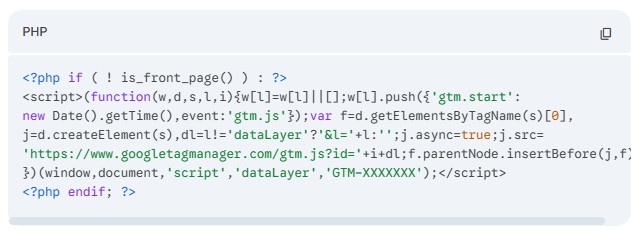
What does this do?
The code! is_front_page() translates to “If this is NOT the front page.”
WordPress will read this and say: “Are we on the homepage? Yes? Okay, skip this code.”
Repeat this process for the GTM Body Code, changing the insertion location to “Body”.
III. Method 2: The “Functions.php” Method (For Intermediates)
If you prefer to keep your plugin count low, you can add this logic directly to your theme’s Functions. PHP file.
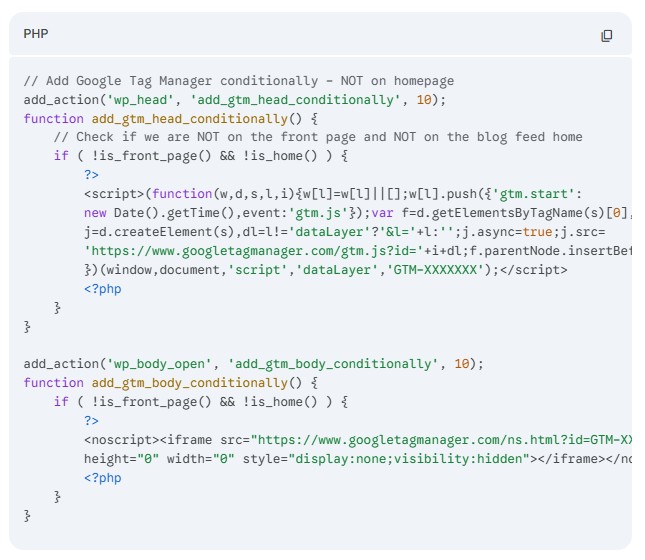
Warning: You should be doing this in a Child Theme. If you edit your parent theme directly, your changes will be wiped out the next time the theme updates.
-
Go to Appearance > Theme File Editor.
-
Select your Child Theme and find
-
Scroll to the bottom and paste the following code (replace GTM-XXXXXXXXXX with your actual ID):
Why use !is_home() AND !is_front_page()?
WordPress is tricky.
-
targets the “Static Homepage” set in your reading settings.
-
is_home() targets the page where your latest blog posts are listed.
- Depending on how your site is built, your “homepage” could be either. Using both ensures the tag stays off your main landing URL.
IV. Method 3: Page Builder Settings (Elementor & Divi)
If you built your header using a Page Builder, you might not need code at all.
For Elementor Pro Users:3
If you inserted your GTM code into an Elementor “Custom Code” block:4
-
Go to Elementor > Custom Code.
-
Select your GTM code snippet.
-
Look for “Display Conditions”.
-
Set it to: Include: Entire Site AND Exclude: Front Page.
For Divi Users:
Divi makes this harder natively because the “Integration” tab applies globally. However, if you use a Divi Code Module to insert the script (instead of the global settings), you can use the “Visibility” settings in the Advanced tab, though this often only hides the visual element, not the script execution. For Divi, I strongly recommend using Method 1 (WPCode) for actual script suppression.
V. Troubleshooting: Why is Google Tag Manager GTM Still There?
You added the code, you saved it, but Google Tag Manager GTM is still firing on the homepage. Here is why:
1. The Cache Monster
This is the culprit 90% of the time. Your server, your caching plugin (WP Rocket, Autoptimize), or your CDN (Cloudflare) is serving an old version of the homepage.
-
Fix: “Purge All Caches” in your WordPress dashboard. Then, open your homepage in an Incognito/Private window to test.
2. You Have Double Installation
You might have successfully removed the Google Tag Manager GTM you knew about, but there is another one hiding.
-
Fix: Check your theme’s header. PHP file. Check third-party plugins like “Google Site Kit.” If Site Kit is active, it forces Google Tag Manager GTM on every page unless you disable the module.
3. Syntax Errors910
Did you miss a closing bracket in the PHP code?
-
Fix: If the code isn’t working, remove it immediately and verify you copied the snippet exactly as shown above.
VI. Verifying Your Work
Don’t just assume it worked. Verify it.
The “View Source” Test:
-
Go to your homepage.
-
Right-click and select View Page Source (or CTRL+U).
-
Press CTRL+F (Find) and type “GTM-“.
-
Result: It should say “0/0 found.”
The “Tag Assistant” Test:
-
Install the Tag Assistant Companion extension for Chrome.
-
Enable it and refresh your homepage.
-
Result: It should show no Global Site Tag or Google Tag Manager GTM container found.
-
Important: Navigate to an internal page (like a blog post). Tag Assistant should light up there. If it’s gone everywhere, you messed up the conditional logic!
VII. A Note on “Internal” Exclusion
You might be wondering: “Can’t I just configure a trigger inside Google Tag Manager to not fire on the homepage?”
Yes, you can. You can set a trigger exception for “Page URL equals /”.
However, here is the catch: That only stops specific tags (such as your Facebook Pixel) from firing. It does not prevent the Google Tag Manager GTM container library (gtm.js) from loading. The heavy JavaScript file still downloads to the user’s browser.
If your goal is to stop specific tags, use Google Tag Manager GTM internal triggers.
If your goal is to improve homepage load speed or fix a duplicate container issue, you must use the removal methods in this guide.